# Systemd
# Modify systemd Config Without Touching Upstream Unit File
## 1. Introduction
Most of the popular, modern Linux distributions use *systemd* to manage services. Services like *sshd* or *getty* come with unit files provided by their vendors. Because it isn’t recommended to edit this configuration, we need a different way to modify the service settings.
*systemd* supports two ways to achieve this goal. **We can extend the configuration to change the selected parameters only.** The rest of the upstream configuration still applies. In this way, we can benefit from service updates. **On the contrary, overriding the configuration shadows the upstream one completely.**
In this tutorial, we’ll learn about both of these ways to alter service settings.
## 2. Extending the Configuration
Because we’ll work with the ssh server [*sshd*](https://man7.org/linux/man-pages/man8/sshd.8.html) as an example, we need to install it. On a Fedora-based system, we use [*dnf*](https://man7.org/linux/man-pages/man8/dnf.8.html):
```bash
$ sudo dnf install openssh-server
```
**We can extend the vendor’s configuration by creating and filling a file *override. conf* in the */etc/systemd/system/<service\_name>.service.d* directory.** Note that the directory name consists of the service name followed by the *d* suffix. If this directory doesn’t exist, we need to create it.
While editing the *override.conf* file, we should obey the same rules as for the regular unit file. As an example, let’s change the [*RestartSec*](https://www.freedesktop.org/software/systemd/man/systemd.service.html) setting for the *sshd* daemon with an entry in the *Service* section:
```bash
$ cat /etc/systemd/system/sshd.service.d/override.conf
[Service]
RestartSec=50
```
For the changes to take effect, we need to reload services with [*systemctl*](https://www.baeldung.com/linux/differences-systemctl-service):
```bash
$ sudo systemctl daemon-reload
```
Then, we can restart the *sshd* daemon:
```bash
$ sudo systemctl restart sshd.service
```
Finally, let’s check the service status:
```bash
$ systemctl status sshd
● sshd.service - OpenSSH server daemon
Loaded: loaded (/usr/lib/systemd/system/sshd.service; enabled; vendor preset: disabled)
Drop-In: /etc/systemd/system/sshd.service.d
└─override.conf
Active: active (running) since Mon 2023-07-31 18:29:25 CEST; 4min 45s ago
# ...
```
The *Drop-In* entry indicates that our change is taken into account.
We can make our work easier by using the *edit* verb of the *systemctl* command. It’ll create the services directory *sshd.service.d* and allow editing the *override.conf* file:
```bash
$ sudo systemctl edit sshd.service
```
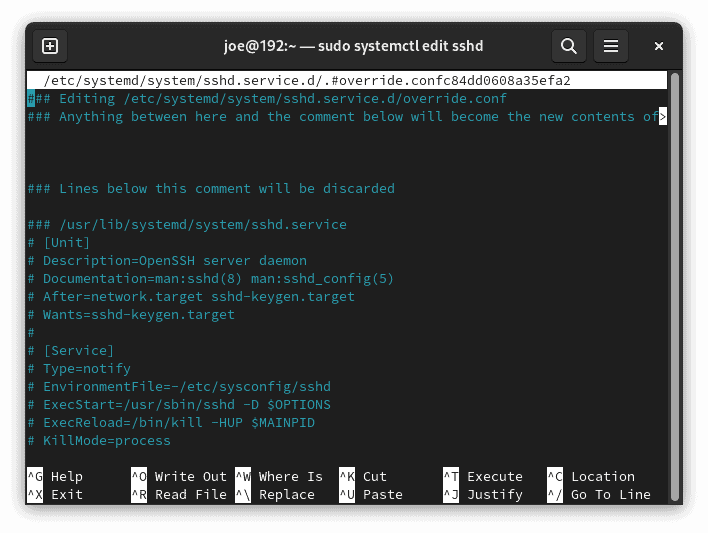
We’re provided with the commented-out upstream configuration of the service for a better overview.
### 2.1. Multiple Drop-in Files and Naming Convention
*override.conf* is nothing but a default name given by the *systemctl edit*. We can use an arbitrary name because the corresponding service is denoted by the name of the folder. **Moreover, we can create multiple overriding configuration files.** Therefore, we should name them so that their names reflect their purposes.
**The files are applied in lexigraphic order**. We can take advantage of it by starting the file names with numbers, such as *10\_*, *20\_*, and so on. Then, if the same setting is modified in a few files, the one with the highest number takes precedence.
As an example, let’s modify *RestartSec* for *sshd* twice. Let’s set it to 50 seconds in the *10\_RestartSec\_50.conf*:
```bash
$ cat /etc/systemd/system/sshd.service.d/10_RestartSec_50.conf
[Service]
RestartSec=50
```
In the *99\_RestartSec\_100.conf* file, we set it to 100 seconds:
```bash
$ cat /etc/systemd/system/sshd.service.d/99_RestartSec_100.conf
[Service]
RestartSec=100
```
Subsequently, we need to **reload services and restart *sshd***. Finally, let’s check the status of *sshd*:
```bash
$ systemctl status sshd
● sshd.service - OpenSSH server daemon
Loaded: loaded (/usr/lib/systemd/system/sshd.service; enabled; vendor preset: disabled)
Drop-In: /etc/systemd/system/sshd.service.d
└─10_RestartSec_50.conf, 99_RestartSec_100.conf
# ...
```
We see that both drop-ins are listed. Let’s dot the ‘i’ and inspect the *RestartUSec* parameter, which takes value after *RestartSec*:
```bash
$ systemctl show sshd --property=RestartUSec
RestartUSec=1min 40s
```
## 3. Overriding the Configuration
Instead of modifying the existing configuration, we can completely cut ourselves off from the upstream unit file. **We need to create a new configuration file *<service\_name>.service* in the */etc/systemd/system* folder, which will replace the vendor’s version.** Let’s do it right away with the *edit –full* command to *systemctl*:
```bash
$ sudo systemctl edit --full sshd.service
```
This time, an editor with no commented-out copy of settings shows up:
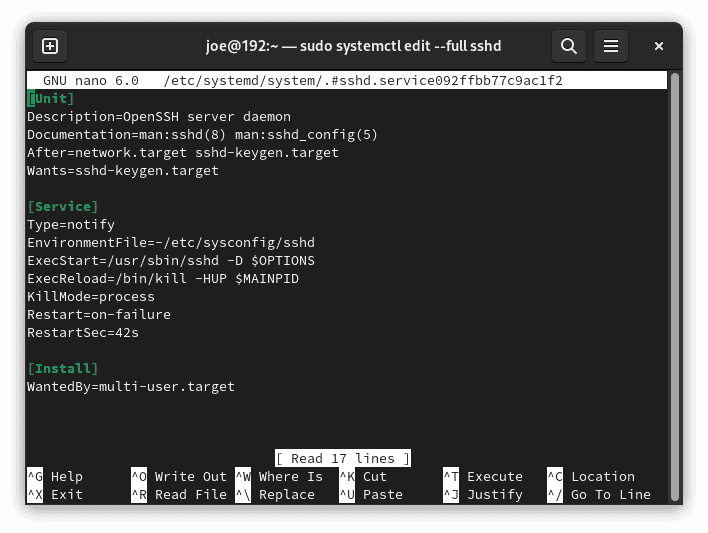
**We can change anything we want**. In our case, let’s modify *RestartSec* again:
```bash
[Service]
RestartSec=50
```
Next, we need to reload the daemons and restart the service. Finally, let’s check its status:
```bash
$ systemctl status sshd.service
● sshd.service - OpenSSH server daemon
Loaded: loaded (/etc/systemd/system/sshd.service; enabled; vendor preset: disabled)
Active: active (running) since Tue 2023-08-01 16:39:04 CEST; 6min ago
Docs: man:sshd(8)
# ...
```
Now, we don’t have the *Drop-In* entry, as the unit file is replaced instead of being extended. We’re informed about it in the *Loaded* line, which shows the unit file path.
## 4. Detecting the Service Modification
**To determine the status of the service in terms of its modification, let’s use the [*system-delta*](https://man7.org/linux/man-pages/man1/systemd-delta.1.html) command.** Throughout this tutorial, we’ll use the syntax:
```bash
$ systemd-delta [OPTIONS]
```
First, let’s issue the command without options. Consequently, it lists all services that were changed in one way or another. Assuming that we’ve modified the *sshd* service configuration with a drop-in file, we’ll find in the output:
```bash
$ systemd-delta
# ...
[EXTENDED] /usr/lib/systemd/system/sshd.service → /etc/systemd/system/sshd.service.d/override.conf
# ...
```
The *EXTENDED* type tells us about the modification and leads to the drop-in configuration file.
On the other hand, if the custom configuration is created and shadows the original one, we’ll obtain a different result:
```bash
$ systemd-delta
# ...
[OVERRIDDEN] /etc/systemd/system/sshd.service → /usr/lib/systemd/system/sshd.service
# ...
```
Now, the *OVERRIDDEN* entry points to the custom configuration file.
In the overridden case, we’re provided with the diff-like details of the change:
```bash
$ systemd-delta
# ...
--- /usr/lib/systemd/system/sshd.service 2022-01-20 23:51:44.000000000 +0100
+++ /etc/systemd/system/sshd.service 2023-08-01 16:37:59.049605208 +0200
@@ -11,7 +11,7 @@
ExecReload=/bin/kill -HUP $MAINPID
KillMode=process
Restart=on-failure
-RestartSec=42s
+RestartSec=50s
```
### 4.1. More on the Modification Type
**The *systemd-delta* command recognizes more ways of service modification.** We can use a type name to query services with the *–type* option. So, let’s examine some of them. First, to find all unchanged services, we should use the type *unchanged*:
```bash
$ systemd-delta --type unchanged
[UNCHANGED] /etc/sysctl.d/99-sysctl.conf
[UNCHANGED] /usr/lib/sysctl.d/10-default-yama-scope.conf
# ...
```
Next, let’s list all overridden configurations. Additionally, we’re going to suppress the diff output with the *–diff=false* option:
```bash
$ systemd-delta --type overridden --diff=false
[OVERRIDDEN] /etc/systemd/system/instsvcdrv.service → /usr/lib/systemd/system/instsvcdrv.service
[OVERRIDDEN] /etc/systemd/system/sshd.service → /usr/lib/systemd/system/sshd.service
2 overridden configuration files found.
```
The services that are modified by the overriding drop-in file can be found in the type *extended*:
```bash
$ systemd-delta --type extended
[EXTENDED] /usr/lib/systemd/system/systemd-hostnamed.service → /usr/lib/systemd/system/systemd-hostnamed.service.d/disable-privatedevices.conf
[EXTENDED] /usr/lib/systemd/system/systemd-logind.service → /usr/lib/systemd/system/systemd-logind.service.d/10-grub2-logind-service.conf
# ...
9 overridden configuration files found.
```
The other types are: *masked*, *equivalent*, and *redirected*.
## 5. Restoring the Original Configuration
**Deleting the custom configuration is pretty simple — all we need is to remove the overriding files and reload services.** So, in the drop-in case, we should remove the files from the */etc/systemd/system/<service\_name>.service.d* directory. When the configuration is replaced, we should remove the *<service\_name>.service* from the */etc/systemd/system* directory.
Finally, let’s issue the commands to reload the config and restart the service:
```bash
$ sudo systemctl daemon-reload
$ sudo systemctl restart .service
```
## 6. Working With Templates
The [service template](https://www.baeldung.com/linux/systemd-multiple-parameters) is a service unit file that can take a parameter. In this way, we can create multiple, different instances of the same service. The name of the service instance looks like:
```bash
@.service
```
Let’s take a look at [*getty*](https://www.baeldung.com/linux/pty-vs-tty), a well-known template service. Its task is to bring up a text pseudo-terminal TTY. The terminal identifier is the template argument. So, let’s open a pseudo-terminal with *Alt+Ctrl+F3*. Afterward, let’s check the active services to find a *getty* instance:
```bash
$ systemctl --type=service --state=active | grep getty
getty@tty3.service loaded active running Getty on tty3
```
Next, we’re going to find the corresponding unit file:
```bash
$ sudo systemctl list-unit-files --state=enabled | grep getty
getty@.service enabled enabled
```
Note the at sign *‘@’* indicating a template unit file of this service.
**We can modify both the template and instances of the service.** When creating a drop-in files directory or a unit file for the template, we should follow the service name with a sole *@*. For service instances, *@* is followed additionally by the template parameter.
As an example, to edit the *getty* template, let’s issue:
```bash
$ sudo systemctl edit getty@
```
In the case of the *getty* instance, we should use:
```bash
$ sudo systemctl edit getty@tty5
```
### 6.1. Working Example
**As an example, let’s change the way the user logs in to the pseudo-terminal.** We’re going to get an automatic login for user *joe* in *tty5*. Thus, we should change the corresponding instance *getty@tty5* of the service. Let’s do that with *systemctl edit*:
```bash
$ sudo systemctl edit getty@tty5
```
In the editor, let’s find the commented-out *ExecStart* entry with the calling of the [*agetty*](https://man7.org/linux/man-pages/man8/agetty.8.html) command:
```bash
# ExecStart=-/sbin/agetty -o '-p -- \\u' --noclear - $TERM
```
By adding the *-a joe* option, we allow automatic login for *joe.* Now, the new *Service* section looks like:
```bash
[Service]
ExecStart=
ExecStart=-/sbin/agetty -a joe -o '-p -- \\u' --noclear - $TERM
```
**The important part is to reset *ExecStart* before setting it to a new value**. We should do that because multiple definitions of this parameter are not allowed — unless it’s a *oneshot* service.
Now, let’s save the modifications and change the default file name *override.conf* to something more meaningful, like *joe\_auto\_login.conf*. At last, let’s reload daemons and press *Alt+Ctrl+F5*. We’ll jump into the pseudo-terminal with the login name set to *joe*.
Finally, let’s check the service status:
```bash
$ systemctl status getty@tty5
● getty@tty5.service - Getty on tty5
Loaded: loaded (/usr/lib/systemd/system/getty@.service; disabled; vendor preset: enabled)
Drop-In: /etc/systemd/system/getty@tty5.service.d
└─joe_auto_login.conf
# ...
```
## 7. Conclusion
In this article, we studied two ways to modify the *systemd* services configuration, without touching the upstream unit file. First, we discovered the difference between extending and overriding the configuration. Then, we got into the details of both approaches.
We learned about the structure and naming convention of files that extend the configuration. Then, we searched for the altered services according to the way of their modification.
Finally, we took a look at the template services. As an example, we allowed automatic login to a selected pseudo-terminal by adjusting the *getty* instance.
# Systemd service
В этой статье мы подробнее посмотрим на юниты **SystemD** с типом **Service**. Разберём параметры из юнита **ssh.service** и не только.
## Юниты SystemD типа service
В **SystemD** все сервисы которые можно запускать или останавливать описываются в специальных юнитах **service**. Это значит, что в таких юнитах описывается вся информация, которая поможет запустить сервис (службу).
Наверно юниты SystemD следовало изучать после изучения процессов. И скорее всего в будущем я поменяю очерёдность в оглавлении. Но сейчас я постарался описать службы (юниты типа service) с минимальным объяснением процессов.
Как вам известно, юниты — это обычные файлы. В юнитах типа **service** описывается способ запуска исполняемых файлов (бинарных или скриптов).
В **SystemD** есть специальная утилита, которая позволяет управлять службами — **systemctl**. Вот некоторые её подкоманды:
- **systemctl start <unit.service>** — запуск службы. При этом происходит какая-то подготовка и запуск одного или нескольких исполняемых файлов. А когда запускаются исполняемые файлы, то в системе стартуют соответствующие процессы. Из этого следует, что после запуска службы в системе запустится один или несколько процессов, которые будут работать в одной службе.
- **systemctl stop <unit.service>** — остановка службы. Эта команда должна остановить службу. При этом должны остановиться все связанные со службой процессы. Хотя процессы не обязательно должны завершиться, это зависит от того, что написано в юните.
- **systemctl status <unit.service>** — статус службы. С помощью этой команды можно узнать статус службы. А именно запущена ли она или нет, какие в неё работают процессы и какой из них главный процесс. А также можно посмотреть последние логи службы.
- **systemctl reload <unit.service>** — перечитывание конфигурации. Эта команда заставит работающие процессы перечитать свои конфиги. Хотя на самом деле, она выполнит то, что написано в юните.
- **systemctl restart <unit.service>** — перезапуск службы. То есть остановка и последующее включение службы.
- **systemctl enable <unit.service>** — включение автозапуска. Эта команда включает автозапуск для службы, а вот когда будет срабатывать автозапуск, зависит от написанного в юните.
- **systemctl disable <unit.service>** — выключение автозапуска. А эта команда выключает автозапуск у службы.
- **systemctl cat <unit.service>** — вывод содержимого файла юнита. То есть делает тоже самое, что и команда **cat /путь/unit.service**.
Мне кажется лучше всего изучать написание юнитов с помощью просмотра уже подготовленных юнитов. Давайте посмотрим на один такой юнит — **ssh.service**.
## Юнит SystemD — ssh.service
### Статус службы
Для начала с помощью команды **systemctl status ssh** посмотрим статус этой службы:
```bash
alex@deb:~$ sudo systemctl status ssh
● ssh.service - OpenBSD Secure Shell server
Loaded: loaded (/lib/systemd/system/ssh.service; enabled; vendor preset: enabled)
Active: active (running) since Thu 2022-07-21 13:59:59 MSK; 5min ago
Docs: man:sshd(8)
man:sshd_config(5)
Process: 10614 ExecStartPre=/usr/sbin/sshd -t (code=exited, status=0/SUCCESS)
Main PID: 10615 (sshd)
Tasks: 1 (limit: 2340)
Memory: 1.1M
CPU: 76ms
CGroup: /system.slice/ssh.service
└─10615 sshd: /usr/sbin/sshd -D [listener] 0 of 10-100 startups
```
В этом выводе можно увидеть файл юнита — **/lib/systemd/system/ssh.service**. Также видно что включена автозагрузка службы — **enabled**. И фраза **vendor preset: enabled** — означает что служба поставляется со включенной автозагрузкой. Другими словами, при установке пакета ssh, сразу включится автозапуск этой службы.
### Содержимое юнита
Давайте теперь посмотрим на содержимое юнита. Это можно сделать с помощью двух разных команд:
```bash
alex@s-deb:~$ cat /lib/systemd/system/ssh.service
*** Этот вывод я пропущу, так как он аналогичен выводу следующей команды ***
alex@s-deb:~$ systemctl cat ssh.service
# /lib/systemd/system/ssh.service
[Unit]
Description=OpenBSD Secure Shell server
Documentation=man:sshd(8) man:sshd_config(5)
After=network.target auditd.service
ConditionPathExists=!/etc/ssh/sshd_not_to_be_run
[Service]
EnvironmentFile=-/etc/default/ssh
ExecStartPre=/usr/sbin/sshd -t
ExecStart=/usr/sbin/sshd -D $SSHD_OPTS
ExecReload=/usr/sbin/sshd -t
ExecReload=/bin/kill -HUP $MAINPID
KillMode=process
Restart=on-failure
RestartPreventExitStatus=255
Type=notify
RuntimeDirectory=sshd
RuntimeDirectoryMode=0755
[Install]
WantedBy=multi-user.target
Alias=sshd.service
```
Здесь мы видим 3 блока:
- **\[Unit\]** — здесь можно описать юнит, и указать ограничения на его запуск;
- **\[Service\]** — сюда добавляется информация, которая используется для запуска, работы и остановки службы;
- **\[Install\]** — в этом блоке описываются дополнительные условия для запуска или автозапуска службы.
#### Блок \[Unit\]
Параметры:
- **Description** — описание юнита;
- **Documentation** — источники документации;
- **After** — запускать юнит после запуска перечисленных юнитов, при этом не требуется чтобы эти юниты были запущены, этот параметр влияет только на очерёдность;
- **Requires** — в нашем примере нет этой опции, но про неё следует знать. Эта опция требует чтобы перечисленные юниты работали. Если они не будут работать, то и наш юнит не запустится;
- **ConditionPathExists** — эта опция проверяет наличия указанного файла. Восклицательный знак перед именем файла означает, что юнит запустится только в том случае, если этого файла в системе нет. Получается чтобы запретить запуск службы **ssh** достаточно создать файл **/etc/ssh/sshd\_not\_to\_be\_run**.
#### Блок \[Service\]
Параметры:
- **EnvironmentFile** — переменные окружения для службы и её процессов будут браться из указанного файла. Минус перед файлом (как в нашем случае **-/etc/default/ssh**) означает что файл может отсутствовать и это не приведёт к ошибке при запуске службы. Это можно использовать как файл с дополнительными настройками.
- **ExecStartPre** — здесь указывается дополнительная команда, которая выполняется перед запуском службы. Это можно использовать, например для подготовки окружения перед запуском.
- **ExecStart** — команда, которая запускает службу. Именно в этом параметре нужно указать главный исполняемый файл (утилиту или скрипт), ради которого мы создаём службу.
- **ExecReload** — здесь нужно указать которая выполнится при выполнении **systemctl reload <unit.service>**. А если утилита не умеет перечитывать свою конфигурацию, без перезагрузки, то можно опустить этот параметр. Параметров **ExecStartPre**, **ExecStart**, **ExecReload** может быть несколько, если нужно выполнить несколько команд.
- **KillMode** — указывает, как процессы службы должны завершаться. Существует несколько вариантов:
- **control-group** — сигнал остановки будет послан всем процессам службы;
- **mixed** — первый сигнал остановки будет послан главному процессу, а второй всем остальным процессам;
- **process** — сигнал остановки будет послан только главному процессу, все остальные процессы (если они есть) останутся работать;
- **none** — никому не будет отправлен сигнал остановки, служба будет выключена, но все процессы продолжат работать (настоятельно не рекомендуется);
- **Restart** — в этом параметре можно указать, в каких случаях нужно перезагружать службу:
- **on-failure** — при ошибке;
- **on-success** — при успехе (при корректном завершении службы);
- **no** — никогда (по умолчанию);
- **always** — всегда, то есть если ваша служба по каким-то причинам останавливается корректно, то этот параметр её перезапустит. Но это не сработает, если вы выполните (**systemctl stop <unit.service>**).
- **RestartPreventExitStatus** — если служба вылетит с указанным кодом завершения (в нашем случае 255), то она больше не перезапускается, даже если установлен **Restart=on-failure**. Про коды завершения я напишу позже.
- **Type** — тип юнита — очень важный параметр. Отвечает за способ запуска службы и её процессов. Бывают следующие типы:
- **simple** или **exec** — они используются для запуска программы как службы. Этот тип стоит использовать, когда запускаемая программа не умеет сама запускаться в фоновом режиме. То есть запускается на переднем плане. Прервать выполнение такой программы можно с помощью комбинации клавиш **Ctrl+C**. При этом **simple** отрабатывает быстрее, но не следит за запуском исполняемого файла, указанного в **ExecStart**. А **exec** дожидается запуска исполнимого файла, и только после этого служба считается запущенной. Желательно использовать **exec** вместо **simple**, так как в **simple** служба может оказаться успешно запущенной, даже если исполнимый файл не смог запустится;
- **forking** — этот тип следует использовать если запускаемое приложение умеет само запускаться в фоновом режиме. Можно использовать этот тип, если вы запускаете с помощью скрипта несколько процессов, которые умеют запускаться в фоне. То есть в **ExecStart** указан скрипт, а в скрипте запускаются фоновые процессы. В этом случае сам скрипт выполнится и завершится, а служба будет управлять запущенными фоновыми процессами;
- **oneshot** — если подразумевается разовый запуск утилиты или скрипта, то подойдет этот тип. Служба такого типа никогда не будет запущенной. Вы запускаете службу, скрипт выполняется и служба останавливается;
- **dbus** — если служба использует соединение D-Bus, то можно использовать этот тип службы. Когда служба запустится, то получит имя на шине D-Bus. Если это имя освободится, то служба будет считаться неисправной и все процессы службы начнут завершатся. Про D-Bus также будет написана отдельная статья;
- **notify** — поведение похоже на **exec**, но дополнительно ожидается, что служба отправит сигнал готовности после своего запуска;
- **idle** — система отложит выполнение двоичного файла службы до окончания запуска остальных (более срочных) задач, максимум на 5 секунд. В остальном поведение аналогично **simple**.
- **RuntimeDirectory** — после запуска службы будет создана указанная директория. В нашем случае — **/run/sshd/**;
- **RuntimeDirectoryMode** — директория будет создана с указанными правами. В нашем случае — **755 (rwx r-x r-x)**. Про систему прав в Linux я уже писал [здесь](https://sysadminium.ru/standard_linux_file_permissions/).
#### Блок \[Install\]
Параметры:
- **WantedBy** — если мы включим автозагрузку этой службы (с помощью команды **systemctl enable <имя службы>**), то она должна запуститься при загрузке мультипользовательского режима (**multi-user.target**). Про таргеты и загрузочные таргеты будет следующая статья.
- **Alias** — псевдоним службы. Указание псевдонима приведёт к тому, что к службе можно будет обратиться ещё и по имени псевдонима. Например, вместо **ssh.service** можно использовать **sshd.service** (**systemctl status sshd.service**).
## Дополнительные опции
В юните **SystemD** — **ssh.service** использовались далеко не все из возможных опций. Вот некоторые опции, которые можно использовать для создания своих служб (в блоке **\[Service\]**):
- **User** — с помощью этого параметра можно указать пользователя (username или uid), от чьего имени будут запущены процессы службы. То есть этот пользователь будет запускать исполняемый файл, указанный в **ExecStart**.
- **ExecStop** — команда, которую нужно выполнить при остановке службы (systemctl stop <unit.service>).
- **KillSignal** — здесь можно указать сигнал остановки процессов. А если этот параметр не указать, то будет использован сигнал **SIGTERM**. Про сигналы, которые можно посылать процессам, я напишу позже.
- **LimitNOFILE** — указывается максимальное число открытых файлов, которые смогут открыть процессы службы.
- **LimitCPU** — можем задать максимальное количество процессорного времени в секундах. Когда лимит будет израсходован, служба завершится с ошибкой.
- **LimitRSS** — лимит потребления памяти в байтах. При достижении лимита служба завершится с ошибкой.
- **LimitNPROC** — максимальное число процессов в службе.
- **Nice** — уровень любезности запускаемых процессов службой. Любезность (**Nice**) — это параметр обратный приоритету. Чем выше Nice, тем ниже приоритет у процесса, и тем меньше он нагружает процессор. Может быть от -20 (самый приоритетный) до 19 (наименьший приоритет).
## Итог
Это не все опции, на самом деле их очень много. Для тех кто хочет во всём этом разобраться дам несколько ссылок на официальную документацию **SystemD** (на английском):
- [Настройка юнитов](https://www.freedesktop.org/software/systemd/man/systemd.unit.html) — описывают сами юниты, их типы, их расположение и приоритет. А также здесь описываются параметры, которые можно использовать в блоке **\[Unit\]** и **\[Install\]**.
- [Управление выполнением юнитов (не только служб)](https://www.freedesktop.org/software/systemd/man/systemd.exec.html) — описывают параметры, с помощью которых мы можем контролировать запускаемые процессы. Эти параметры принадлежат блоку **\[Service\]**. Это лимиты, пользователи, параметры безопасности, переменные окружения и тому подобное.